
Demo
See it working.
Open the live demo and click around. It is a working copy of EasyUse Landscaping CRM filled with made-up jobs, crews, quotes and invoices, so nothing you do can break anything. No sign-up or password: pick a role and click around, as the owner, the office, a supervisor or a crew member on their phone. It resets every night.
Watch
The whole thing in about a minute and a half.
A voice-over tour on invented data, then four shorter demos. Only built features are shown.
Read the transcript
Measure the patio, pick the slabs, and the price works itself out.
Email the quote, mark it accepted, and it becomes a job.
Materials come from the quote, labour from approved crew time, so you see the margin as you go.
Drag jobs onto the rota. Double-bookings and rain are flagged before you commit.
Crews work from a phone app. No signal? Carry on. It all sends when they are back online.
Clocking in takes two taps. The office approves, and corrections are kept with a reason.
Raise the invoice from the finished job, and send it through QuickBooks.
When QuickBooks shows it paid, you see it here too.
Built by a working landscaping firm, for its own crews.
Voice generated with ElevenLabs. Captions are in the player.
Read the transcript
Quotes that turn into jobs.
Measure the patio and pick the slabs.
Labour, plant and materials come from your rate card.
Email the quote, then mark it accepted.
That creates the job.
The materials come straight from the quote.
Labour comes from approved crew time.
So you see the margin as you go.
Voice generated with ElevenLabs. Captions are in the player.
Read the transcript
A rota you can trust.
Drag a job onto the rota.
If someone is already booked, you are told before you commit.
And rain on the forecast is flagged.
Out on site with no signal? Carry on.
Clock in, tick the checklist, add photos.
When the phone finds signal, it all sends.
Voice generated with ElevenLabs. Captions are in the player.
Read the transcript
Time that adds up.
Clocking in takes two taps.
And so does clocking out.
The office approves with a click.
Anything wrong is corrected, with the reason kept on record.
Time you can pay on.
Voice generated with ElevenLabs. Captions are in the player.
Read the transcript
From finished job to paid invoice.
Invoice from the finished job: the price, then labour and materials.
Review it, and send it through QuickBooks.
Every job is followed right to the end.
Paid in QuickBooks. Shown here.
Voice generated with ElevenLabs. Captions are in the player.
Office
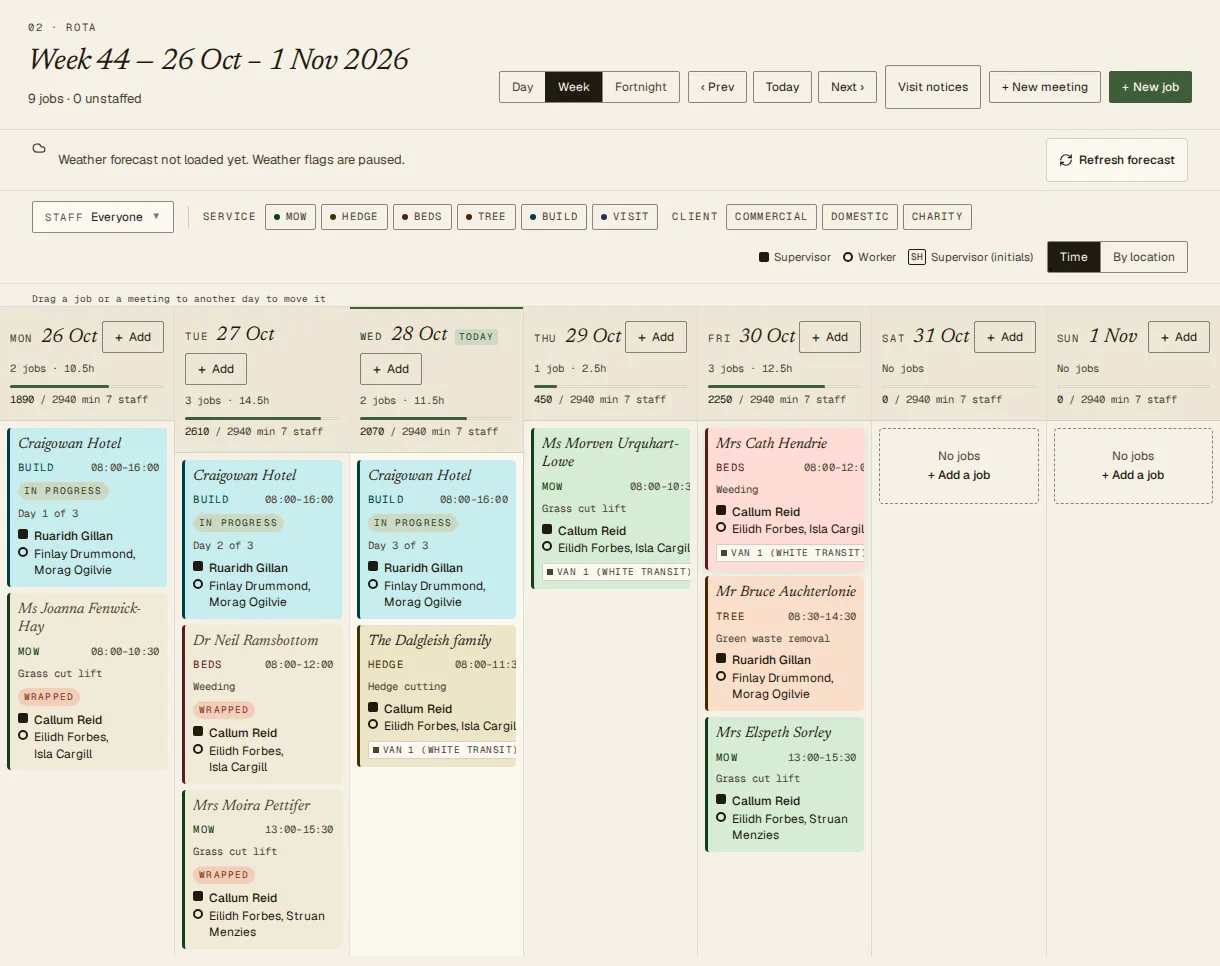
The week on one screen.
Jobs by day and person, coloured by type of work. A flag appears when the forecast is against a job.
Crew
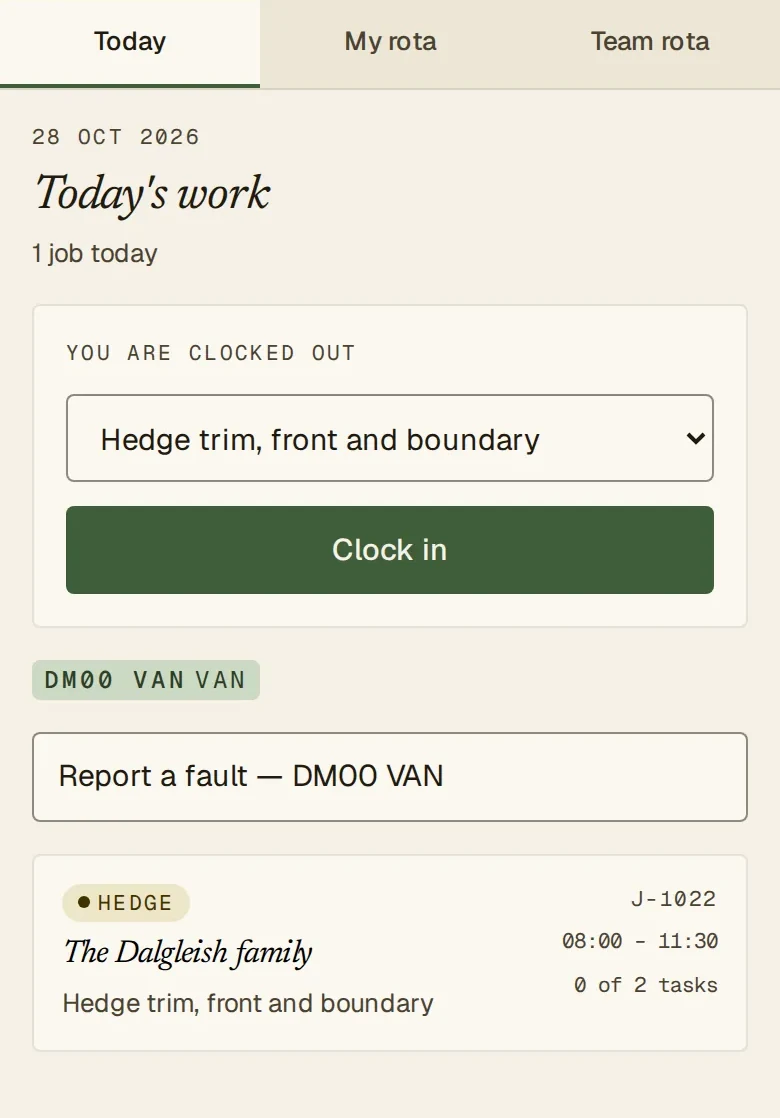
Today's jobs, in a pocket.
The crew see only their own work: where, when, with whom, and the gate code. Clock in with a tap, add photos and receipts, and carry on if the signal drops.
- Big, glove-friendly buttons
- Works offline and sends when back in signal
- Installs on the home screen

Quote to cash
Follow every job to the end.
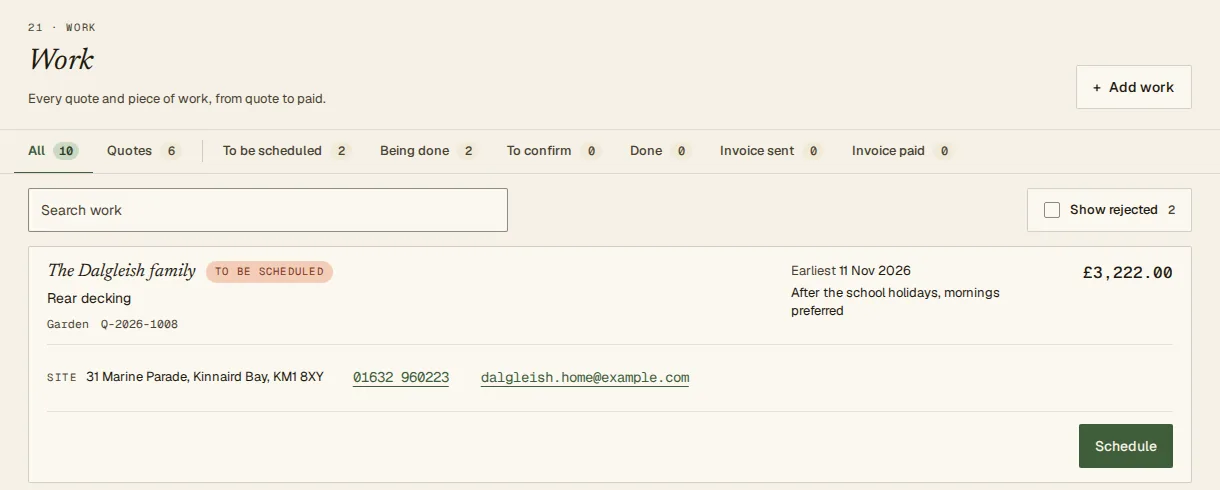
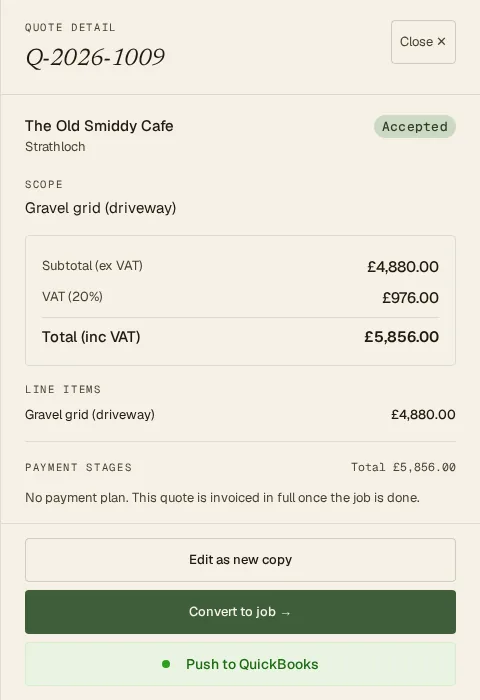
An accepted quote becomes a piece of work. It moves through these stages, and you can see them all on one page.
- Quote
- To be scheduled
- Being done
- Done
- Invoice sent
- Invoice paid
These are the real stages a piece of work moves through.
Want to see it with your own jobs in mind?
A 15-minute screen-share is the quickest way. Tell us how you run things now and we will show you where EasyUse fits and where it does not.